
T3 · Teacher guide
Add and organise curriculum materials
Attach documents the tutor can cite, and keep them organised.
What materials do
When you attach a document to an activity, the tutor can cite it — ground its answers in your source rather than in general knowledge. You can attach:
- documents from the shared corpus — material already available to you, and
- your own uploads — a PDF, slides, a worksheet, notes, or an image.
Each attached document is either visible to students or hidden (used only to ground the tutor). You choose per document.
Step 1 — Open the Materials section
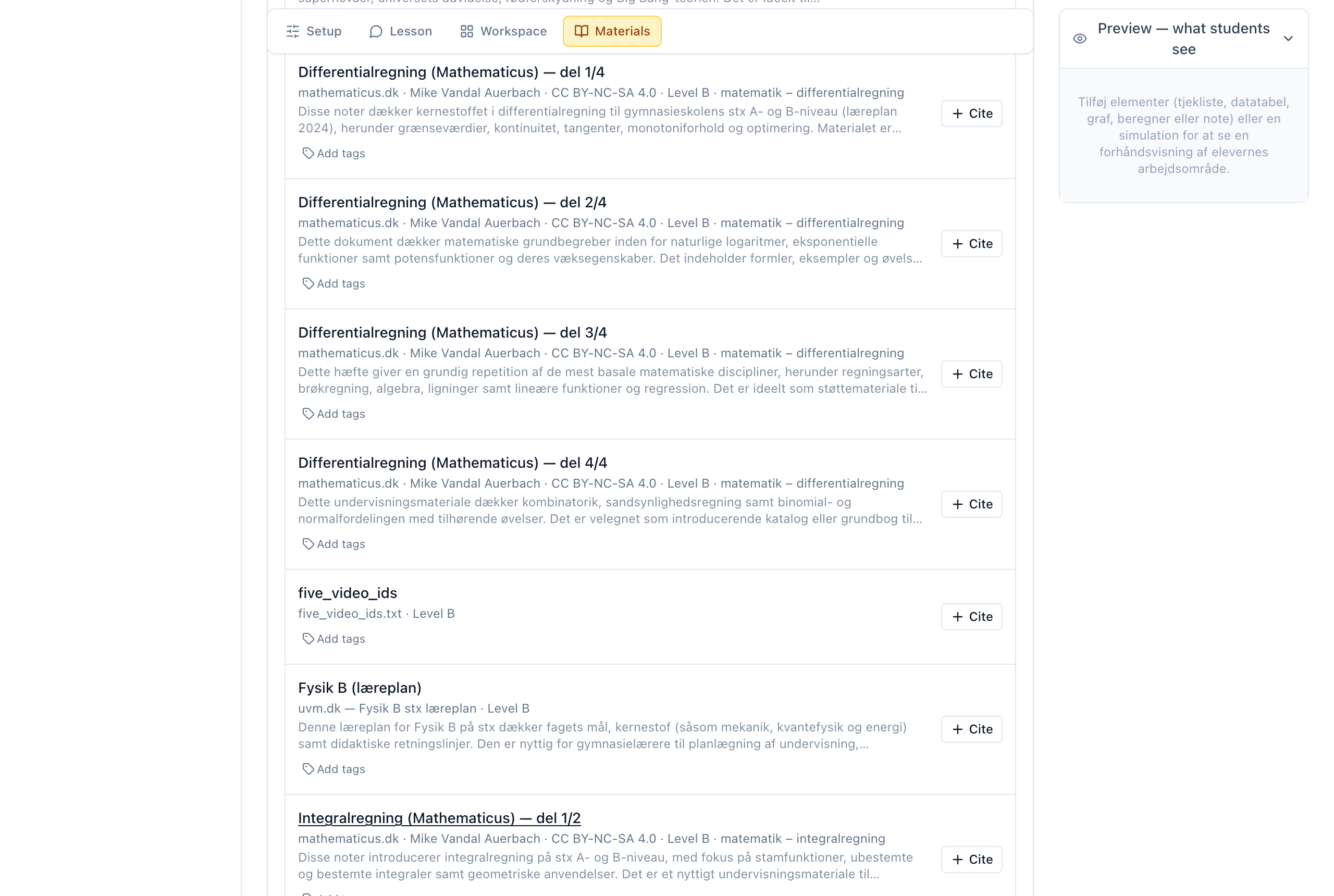
Open an activity for editing (or create one — guide T2). In the builder's section navigation, select Materials. The section lists the shared corpus you can browse, with an Upload button and controls to filter and organise.
Step 2 — Attach a document
You have two ways to attach material:
- Cite an existing document. Use the Search materials box or the level, tag, subject and folder filters to find what you want, then select Cite on its row. It moves into the activity's cited list.
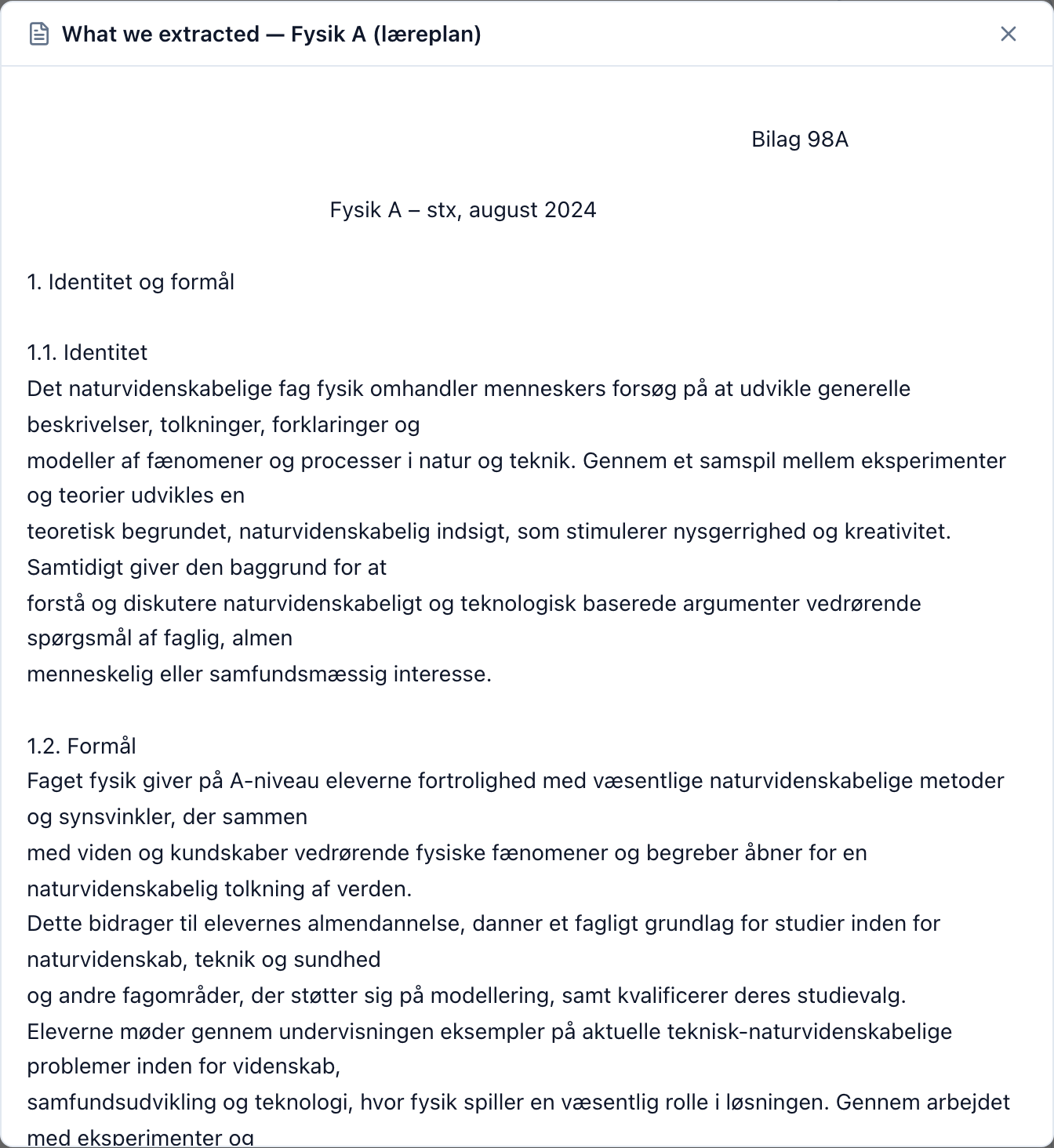
- Upload your own. Select Upload and choose a file (PDF, Word, slides, spreadsheet, plain text, or an image). AIPLA extracts the text and shows you what it extracted, so you can confirm the document was read correctly before relying on it.
Step 3 — Organise: folders, tags and subject
Keep a growing corpus navigable:
- Folders — group related documents; create one with New in the folder rail. Deleting a folder unfiles its documents rather than deleting them.
- Tags and Subject — set on a document so the filters can find it later.
These are shared organisation, so a document you tag well is easier for you and your colleagues to reuse across activities.
Step 4 — Control what students see
Each cited document has a Visible / Hidden toggle. Hidden documents still ground the tutor's answers; visible documents also appear to students in the activity. New uploads default to Hidden — make a document visible only when you want students to read the source directly.
Next steps
- Let the AI co-pilot assemble an activity — including suggested materials — from a description: T4 — Author with the AI co-pilot.
Last reviewed: · AIPLA project team