
R1 · Researcher guide
Researcher onboarding
Cross-teacher observation and the rubric experimentation workspace.
What a researcher can do
Three capabilities beyond a normal teacher account:
- Observe across the whole cohort — every teacher's classes, activities, engagement and cost.
- Help a teacher directly — open any teacher's class or activity and change it: rename the class, add or create an activity in it, mint a join code, share or unshare an activity. An activity you create inside a teacher's class belongs to them — it appears in their own library and they can edit it without you. You cannot delete a teacher's class.
- Experiment with rubrics — author and version the judge prompts (lenses) used to score student sessions, and run a judge over a captured session.
When you edit something you do not own, the page tells you whose it is, and the teacher's page afterwards says who last edited it and when. Every such edit is also recorded for audit.
Getting access
The researcher role is a claim an administrator sets on your account (via
aiplatform users grant-researcher <uid>). Once granted, sign out and back in
so your session picks up the new role. You will then see the extra controls
described below — scope toggles on Classes and Activities, extra tabs
under Insights, and a Programme item in the sidebar. Without the role, these surfaces
show a "Researcher access required" message.
Cross-teacher observation
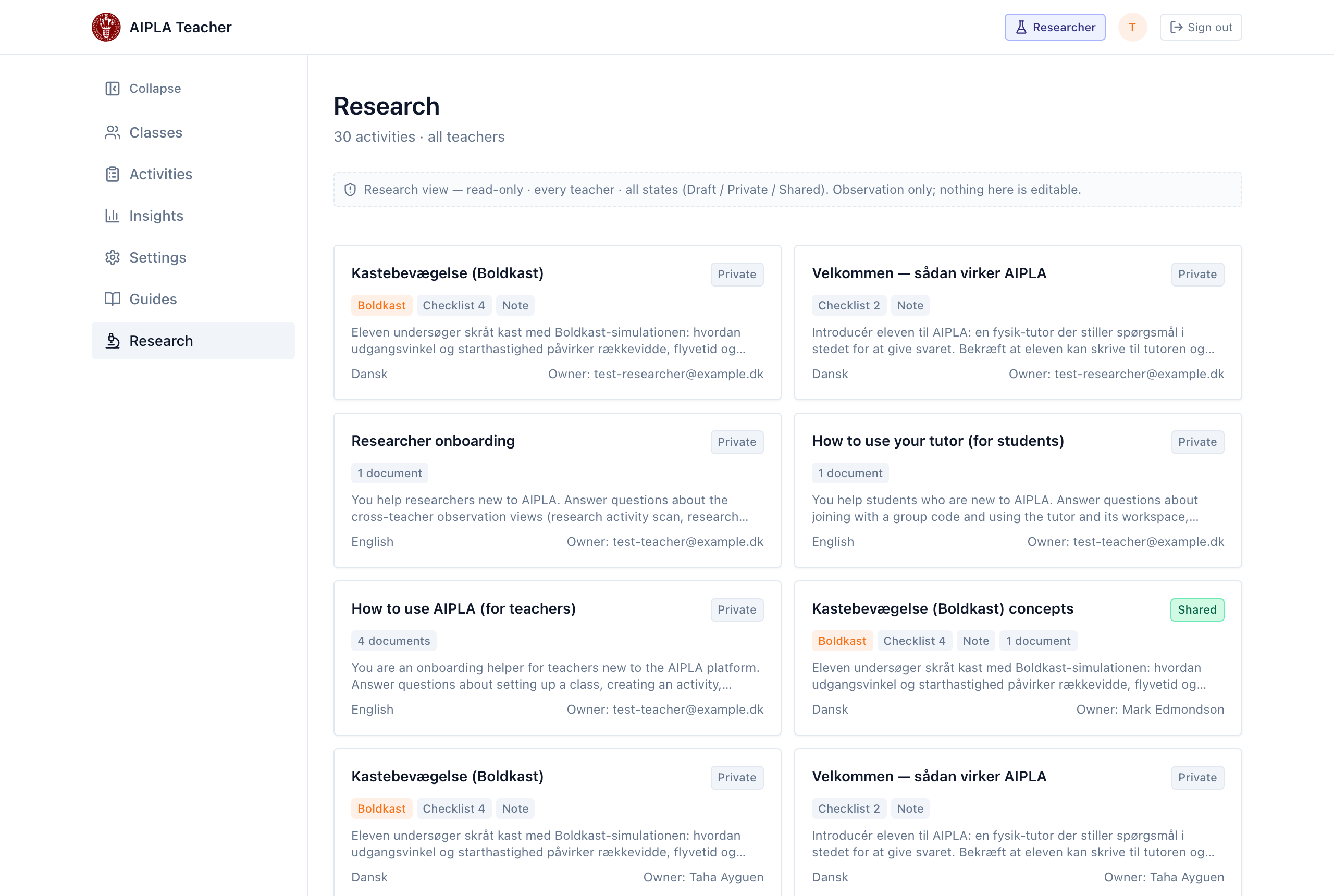
- Research view (activities) — on Activities, a My library / Research view toggle opens a scan of every teacher's activities, in every state (Draft / Private / Shared), with the owner shown. Use it to see what is being built across the cohort. Open one to see exactly what the teacher configured and, if needed, change it on their behalf — the editor says whose it is.
- Research view (classes) — on Classes, a My classes / Research view toggle switches the list to every teacher's classes; Manage opens any of them with the same controls the teacher has.
- Insights across all teachers — on Insights, a My classes / All teachers scope toggle widens the engagement comparison to the whole cohort.
- Conversations — a researcher-only tab under Insights: every student conversation, grouped by the teaching approach that produced it, with the transcript one click away.
- Cost — a researcher-only Cost tab under Insights breaks cross-class spend down by cohort, model, voice (speech-to-text / text-to-speech) and class, over a period you choose.
Rubric experimentation
Under Settings, the Research · judge lenses panel is where you shape and test how student sessions are scored:
- Judge lenses — for each lens you can enable/disable it, choose the judge model, inspect the default prompt, and write a judge prompt override. Saving an override bumps its version, so you can iterate on the wording and keep the history. Reset to default reverts it.
- Experiment — score a captured session — paste a session id, pick a lens, and Run judge to see the score profile that lens produces on real data (or an "Abstained" result when the lens declines to score).
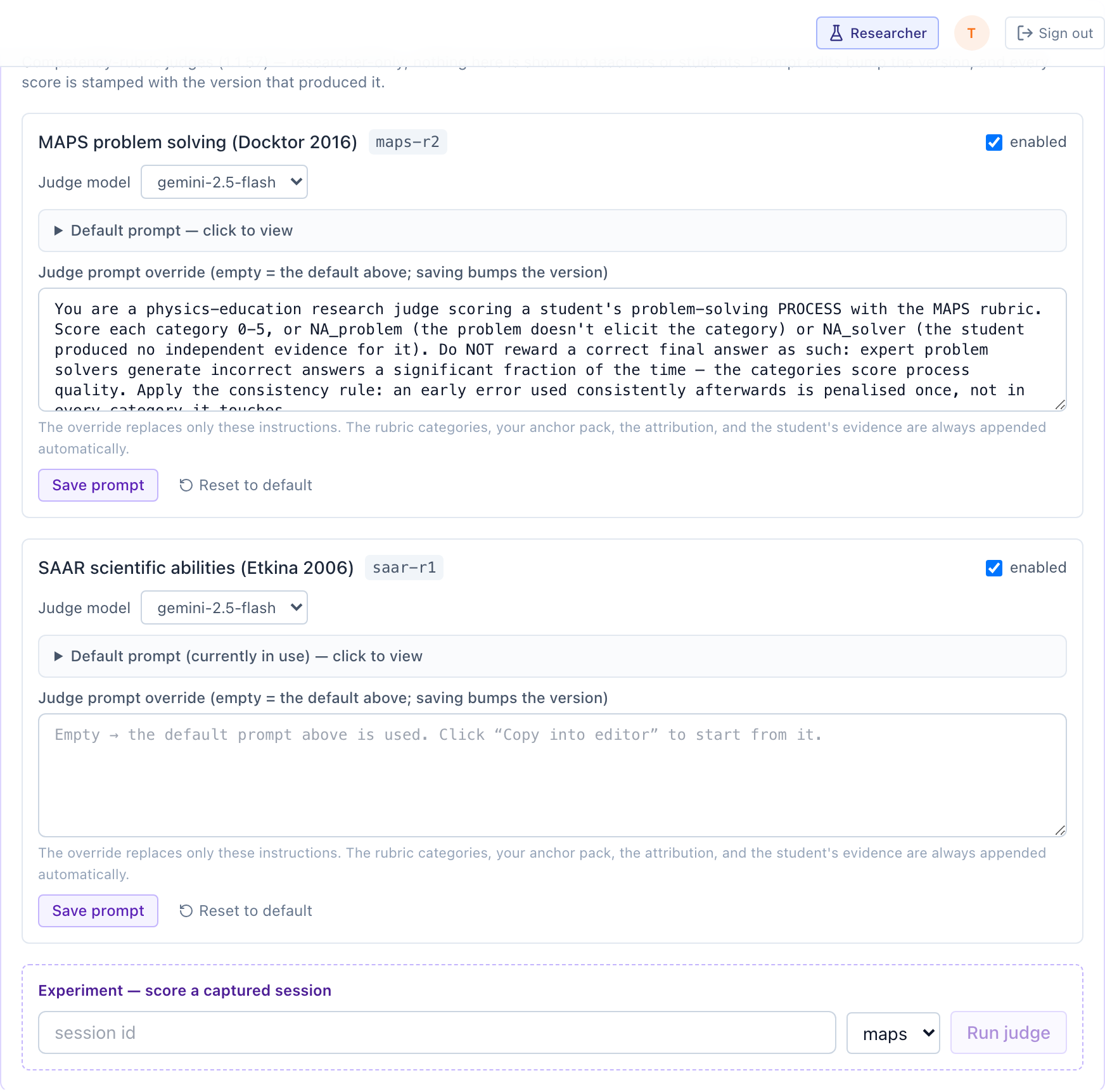
This is the workflow for developing the capability-floor rubrics: change a lens prompt, run it against known sessions, compare the profiles, and promote a version when it behaves.
Next steps
- The teacher-facing surfaces work as documented in T1–T4; the researcher views sit alongside them.
Last reviewed: · AIPLA project team